GitHub Copilot has become an essential AI assistant for modern software development. With Visual Studio 2026, Copilot is more deeply integrated than ever, helping developers write better code faster, reduce boilerplate, and stay focused on solving real problems.
In this article, you’ll learn how to get started with GitHub Copilot in Visual Studio 2026, from installation and setup to practical usage tips and best practices.
What Is GitHub Copilot?
GitHub Copilot is an AI-powered coding assistant developed by GitHub and OpenAI. It analyzes the context of your code and suggests:
- Complete lines or blocks of code
- Functions and classes
- Unit tests
- Documentation comments
- Refactoring ideas
Copilot supports many languages including C#, TypeScript, JavaScript, Python, SQL, and more, making it ideal for full-stack and cloud developers.
Prerequisites
Before you start, make sure you have the following:
- Visual Studio 2026 (latest stable release)
- A GitHub account
- An active GitHub Copilot subscription (individual or business)
- Internet access (Copilot works in the cloud)
💡 GitHub Copilot is often included in GitHub Enterprise or Copilot Business plans.
Step 1: Install GitHub Copilot in Visual Studio 2026
In Visual Studio 2026, Copilot is usually bundled but can be enabled or updated via extensions.
- Open Visual Studio 2026
- Go to Extensions → Manage Extensions
- Search for GitHub Copilot
- Install or update the extension
- Restart Visual Studio if prompted
Once installed, Copilot runs quietly in the background and activates automatically.
Step 2: Sign In to GitHub
To use Copilot, Visual Studio must be connected to your GitHub account.
- Open File → Account Settings
- Sign in with your GitHub account
- Confirm authorization for GitHub Copilot
After signing in, Copilot will start generating suggestions based on your code.
Step 3: Enable and Configure Copilot Settings
You can customize how Copilot behaves:
- Go to Tools → Options → GitHub Copilot
- Configure:
- Enable/disable Copilot globally
- Enable suggestions per language
- Inline suggestions vs. panel suggestions
- Telemetry and privacy preferences
Recommended settings for most developers:
- ✅ Inline suggestions enabled
- ✅ Copilot Chat enabled
Step 4: Start Coding with Copilot
Copilot works best when you write clear intent in comments or method names.
Example: C# Method Generation
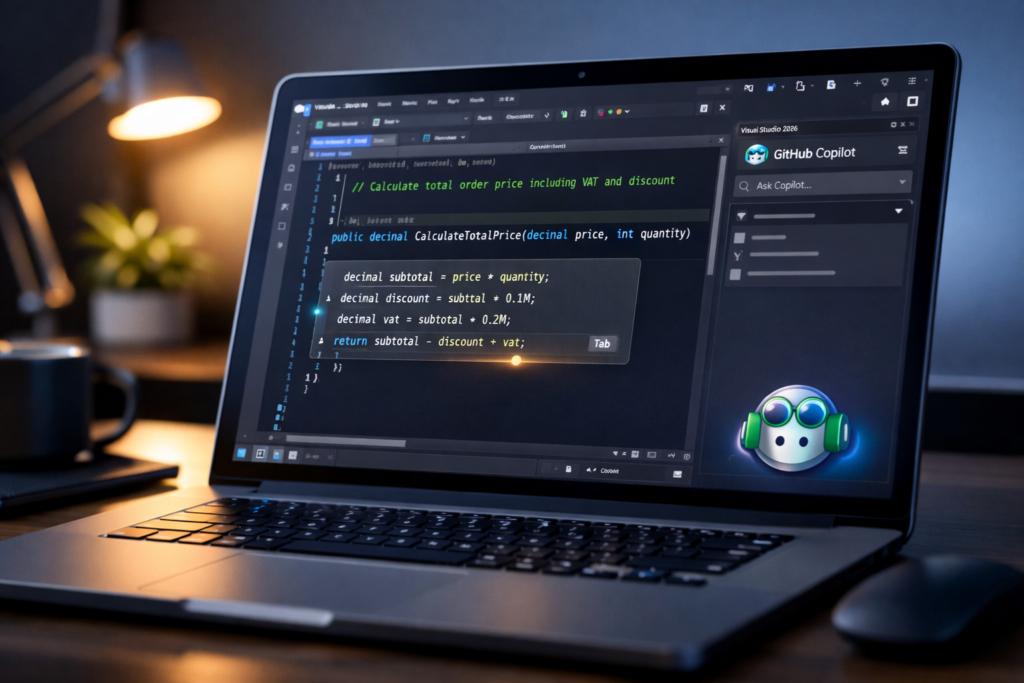
// Calculate total order price including VAT and discount
public decimal CalculateTotalPrice(decimal price, int quantity)
Copilot will suggest a complete implementation automatically.
Press Tab to accept the suggestion or Esc to dismiss it.
Step 5: Use Copilot Chat in Visual Studio 2026
Visual Studio 2026 includes Copilot Chat, allowing conversational interaction directly in the IDE.
You can ask:
- “Explain this method”
- “Refactor this to async”
- “Generate unit tests for this class”
- “Optimize this LINQ query”
Copilot Chat understands your entire solution context, making it far more powerful than generic AI tools.
Best Practices for Using GitHub Copilot
To get the most value from Copilot:
✅ Do
- Write descriptive method and variable names
- Use comments to describe intent, not implementation
- Review all generated code carefully
- Use Copilot for repetitive or boilerplate code
❌ Don’t
- Blindly accept suggestions
- Assume generated code is production-ready
- Use Copilot for sensitive business logic without review
Copilot is a co-pilot, not an autopilot.
Security and Compliance Considerations
For enterprise and professional environments:
- Copilot does not train on your private code
- Business plans allow policy enforcement
- You can disable Copilot per repository or project
- Always validate generated code for security issues
This makes Copilot suitable for enterprise .NET, cloud, and DevOps projects when configured correctly.
Why GitHub Copilot Is a Game Changer in Visual Studio 2026
With tighter IDE integration, Copilot in Visual Studio 2026 offers:
- Faster development cycles
- Fewer context switches
- Improved code quality
- Better onboarding for new developers
For teams working on Azure, .NET, microservices, or cloud-native applications, Copilot can significantly increase productivity.
Conclusion
Getting started with GitHub Copilot in Visual Studio 2026 is simple, but mastering it can transform how you write software. By combining human expertise with AI assistance, you can focus on architecture, performance, and business value instead of repetitive coding tasks.
If you want to integrate AI-assisted development into your workflow or team, GitHub Copilot is an excellent place to start.